
If you’ve ever tried to email a handful of vacation photos only to hit a “file size exceeded” error, or waited for a webpage to load because its images were far too heavy, you know the headache of oversized image files. They take up unnecessary storage space, slow down websites, and make sharing files through email, messaging apps, or cloud drives a chore. A reliable image compressor cuts down file sizes without ruining the visual quality you care about — and that’s exactly what we built here.
MyLuckFile’s image compressor lets you shrink JPG, PNG, and WebP files right in your web browser, with no uploads to remote servers and no software to install. Every part of the process runs locally on your device, so your original files never leave your computer. It’s simple, fast, and built with your privacy in mind.
Whether you’re optimizing product photos for an online store, prepping images for a website, cleaning up storage on your phone, or just trying to share pictures with friends, you can process multiple images at once without jumping through hoops or creating an account.
Why Compress Images At All?
High-resolution photos and graphics look great, but they often carry far more data than most use cases actually need. That extra pixel data keeps details sharp, but it also makes files bigger — and bigger files come with real downsides.
For website owners, large images are one of the most common causes of slow page speeds. When images take too long to load, visitors leave before the page even finishes rendering, which hurts both user experience and search rankings. Smaller, compressed images load faster, keep visitors on the page longer, and make for a smoother overall experience.
For everyday users, oversized images eat up storage space on laptops, phones, and cloud accounts. They also take longer to upload and download, and many email and messaging platforms have strict file size limits that can block you from sending files entirely.
Compression fixes all of this by stripping out unnecessary data while keeping the image looking clean and clear. The result: smaller files that are easier to manage, share, and publish — without a noticeable drop in quality for most uses.
Supported Image Formats
We built this tool to work with the three image formats you’re most likely to use day to day: JPG, PNG, and WebP. Each has its own strengths, and our compressor is tuned to handle each one properly.
JPG Compression
JPG (or JPEG) is the standard format for photographs and real-world images. It strikes a solid balance between color detail and file size, which is why it’s the go-to choice for phone cameras, social media, and most web photos.
Compressing JPG files is one of the easiest ways to free up storage space or speed up a website. Our compressor reduces file size by tuning the quality level, so you can pick the sweet spot between small file size and sharp, natural-looking photos. For most web use cases, even moderate JPG compression is nearly impossible to tell apart from the original.
PNG Compression
PNG is the format of choice for screenshots, logos, graphics, and any image that needs a transparent background. Unlike JPG, it uses lossless compression by default, which means files can get very large very quickly — especially for screenshots of full web pages or detailed graphics.
Our PNG compression optimizes the file structure without breaking transparency or altering the original format. You get smaller PNG files that look identical to the original, making it perfect for design assets, website graphics, and screenshots you need to share at work.
WebP Compression
WebP is the modern image format built specifically for the web. It’s designed to deliver high visual quality at much smaller file sizes than both JPG and PNG, which is why most major websites and browsers now support it.
Even though WebP is already efficient, compressing WebP files can shrink them even further without losing quality. If you’re building a fast, performance-focused website, running your WebP images through our compressor is an easy way to cut load times even more.
Batch Image Compression: Process Multiple Files at Once
Let’s be honest: resizing images one by one is tedious. If you’re working with a folder full of product photos, a gallery of travel pictures, or a set of website assets, doing them one at a time wastes time you could spend on more important work.
MyLuckFile supports batch compression, so you can drag and drop as many images as you want and process them all in one go. There’s no limit on how many files you can add, and every file is handled locally on your device so you don’t have to wait for slow server uploads.
This is especially useful for:
- Optimizing all the images on a website before a launch
- Resizing product photos for an e-commerce store
- Prepping batches of images for social media posts
- Shrinking large photo collections to save storage space
- Reducing the size of multiple email attachments at once
No more opening each file in an editor, exporting at a lower quality, and repeating the whole process ten times. Drop them in, pick your quality level, and download them all together.
Your Images Stay Private — No Uploads Required
Here’s the thing about most online image compressors: they make you upload your files to their server first before they process them. For casual screenshots that might not matter, but for personal photos, work documents, sensitive design files, or anything you’d rather not share with a random third party, it’s a real problem.
We built MyLuckFile differently. All the compression work happens directly inside your web browser, using your device’s own processing power. Your images are never sent to a cloud server, never stored on someone else’s hardware, and never leave your control at any point in the process.
There’s no account to create, no personal information to give, and no hidden data collection. You open the page, drop in your files, and download the results — that’s it. No fine print, no tracking, no surprises.
For anyone who handles sensitive images, or just values their privacy, this isn’t a nice-to-have. It’s the whole point.
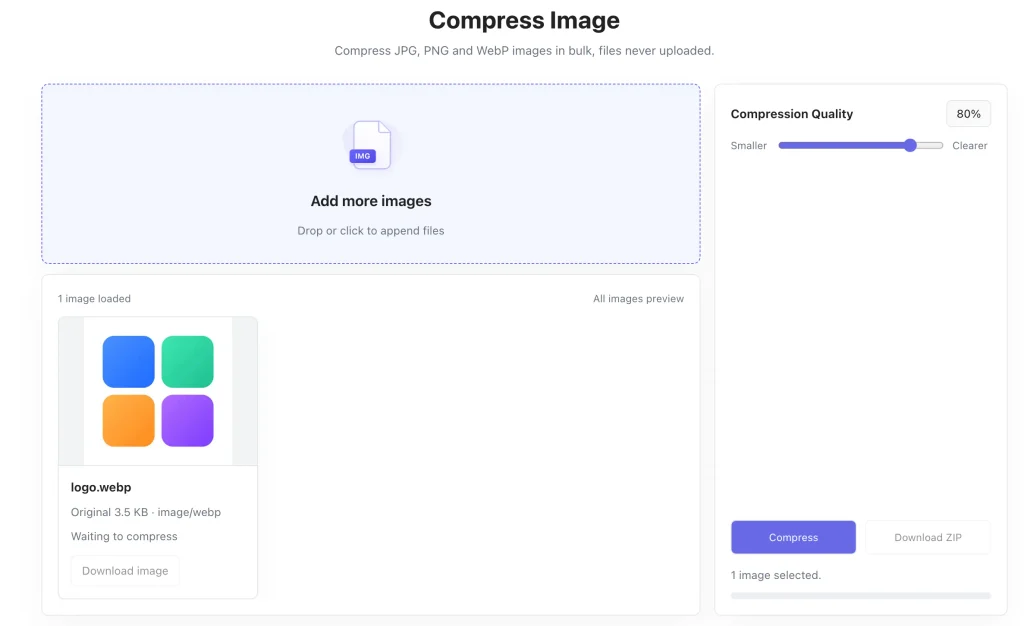
How to Compress Images Online in 3 Simple Steps
You don’t need any technical skills to use this tool. The whole process takes just a few seconds, even for multiple files.
- Select your images Drag and drop your JPG, PNG, or WebP files right onto the page, or click the select button to pick them from your computer or phone. You can add one image or dozens at a time.
- Pick your compression level Use the slider to adjust the quality level to match what you need. Slide it further left for smaller file sizes, or further right to preserve more detail. You can preview the result before you download to make sure you’re happy with how it looks.
- Download your compressed images Once processing finishes, download your optimized images individually or all at once in a zip file. They’re ready to use right away — no extra steps required.
Finding the Right Balance Between Quality and File Size
Image compression isn’t about making files as small as possible no matter what. It’s about finding the right balance for what you’re using the image for.
If you’re compressing images for a website, a little more compression is usually worth it. Faster page speeds improve user experience and SEO, and most visitors won’t notice a small drop in quality on a standard screen. For hero images or product photos where detail matters, you can dial the quality up a bit.
If you’re sharing photos via email or messaging app, moderate compression is almost always the best choice. It cuts file size enough to avoid size limits, but keeps the image looking good enough to share.
For professional photography or print use, you’ll want to keep quality as high as possible. In those cases, only use light compression, or skip compression entirely if file size isn’t an issue.
There’s no single “best” setting — it depends on your goal. Our tool lets you adjust the level so you can make the call for each image.
Why Use MyLuckFile’s Image Compressor?
There are hundreds of image compression tools online. Here’s why ours is worth your time:
- 100% browser-based, no downloads — you never have to install software, extensions, or apps. Just open the page and start compressing.
- Local processing, total privacy — your files never leave your device. No uploads, no cloud storage, no third-party access.
- Batch support — compress as many images as you want in one session, instead of doing them one by one.
- Supports all major formats — works with JPG, PNG, and WebP, the three formats you use most.
- Free to use — no paywalls, no watermarks, no hidden fees. Compress as many images as you need, whenever you need to.
- No account required — no signups, no email verifications, no personal information asked for.
We built this tool the way we wanted online tools to work: simple, respectful of your privacy, and actually useful.
Frequently Asked Questions
Is this image compressor really free?
Yes. You can compress JPG, PNG, and WebP images completely free, right in your browser. There are no hidden charges, no watermarks, and no limits on how many files you can process.
Do my images get uploaded to a server?
No. Every part of the compression process runs locally on your device, inside your web browser. Your image files are never sent to any remote server, and we don’t store copies of any files you process.
Can I compress multiple images at the same time?
Absolutely. Our batch compression feature lets you add as many images as you want and process them all together. This saves a huge amount of time compared to compressing files one by one.
Will compressing my images make them look blurry?
That depends on the compression level you choose. Higher compression creates smaller files but can reduce detail. For most everyday uses, moderate compression keeps images looking clear while still cutting file size significantly. You can preview the result before downloading to find the right balance.
What image formats are supported?
We currently support compression for JPG (JPEG), PNG, and WebP image files. These are the most widely used formats for web, photos, and graphics.
Oversized images don’t have to slow you down, fill up your storage, or get in the way of sharing files. With the right tool, you can shrink files down to size quickly, easily, and without putting your privacy at risk.
If you’re ready to compress your images without the hassle of uploads, software installs, or accounts, give our free image compressor a try. It works on every modern browser, on both desktop and mobile, and it’s ready to use right now.
Compress Image