
If you’ve ever tried to post a photo to social media only to realize the framing is all wrong, or needed to cut extra whitespace out of a screenshot before sending it to your team, you know how often a quick image crop comes up. Most full photo editors feel like overkill for a simple trim, and nearly every online crop tool makes you upload your files to a remote server first — even for basic edits. That’s why we built a simpler, more private way to crop images right in your web browser.
MyLuckFile’s image cropper lets you trim JPG, PNG, and WebP files locally on your device, with no uploads, no software installs, and no account required. You can drag to select your crop area, type in exact dimensions, or use quick position presets to get the framing exactly right. Whether you’re cropping one screenshot or an entire folder of product photos, everything runs directly in your browser, and your files never leave your computer.
Whether you’re prepping social media graphics, standardizing product images for a store, cleaning up work screenshots, or trimming personal photos, you can get it done in seconds without handing your files off to a third-party service.
Why Crop Images At All?
Cropping is one of the most basic, most useful image edits there is. It’s not just about cutting out parts you don’t want — it’s about focusing attention, fitting requirements, and making images work for where they’re going.
For social media, every platform has its own ideal aspect ratios. A photo that looks great on Instagram might get awkwardly cropped automatically on Twitter, or cut off important details on a LinkedIn banner. Cropping your images beforehand lets you control exactly what viewers see.
For websites and online stores, consistent image sizes make pages look clean, professional, and organized. Cropping all your product photos to the same dimensions keeps your product grid aligned and makes your whole site feel more polished.
For screenshots and work documents, cropping lets you cut out irrelevant browser tabs, menu bars, and empty space, so the viewer focuses only on the content that matters. It also makes files smaller and easier to share.
A good crop doesn’t just remove edges — it makes the image better.
Precise Cropping Control, Exactly How You Want It
This tool isn’t just a basic drag box. We built in all the controls you need to get the exact crop you want, without any unnecessary complexity.
You can drag the corners of the crop frame freely to any size and position. If you need exact dimensions, you can type in specific width and height values right in the sidebar. You can also adjust the X and Y position coordinates to nudge the crop area pixel by pixel.
For even faster workflow, there’s a 3×3 grid of position presets. One click aligns your crop area to the top-left, center, bottom-right, or any other corner or edge — perfect for when you need consistent framing across multiple files.
You can crop one image at a time, or apply the exact same crop area to every image in your batch with one click. No re-adjusting, no repeating the same work for every file.
Batch Image Cropping: Trim Multiple Files at Once
Cropping images one by one is tedious when you have a whole folder to get through. If you’re standardizing dozens of product photos, trimming a batch of screenshots, or prepping a set of social media graphics, doing them one at a time wastes a lot of time.
MyLuckFile supports batch cropping, so you can load as many images as you want and process them all in one session. Set your crop area once, apply it to every file, and crop them all at the same time. You can also go through each image individually to fine-tune the framing if you need to.
This is a huge time-saver for common tasks like:
- Standardizing product photos for an e-commerce store
- Prepping batches of social media posts in bulk
- Trimming browser menus off a set of screenshots
- Cropping event photos to the same aspect ratio
- Resizing profile pictures and headshots for work
No more opening each file in an editor, making the same crop, exporting, and repeating. Drop them all in, set your frame, and download them all together.
Your Images Stay Private — No Uploads Required
Most online image editors upload your files to their server the second you drop them in. For casual vacation photos that might not bother you, but for work screenshots, internal documents, ID photos, sensitive design work, or personal pictures you’d rather not share, that’s a real privacy risk.
MyLuckFile works completely differently. All the cropping happens directly inside your web browser, using your device’s own processing power. Your image files are never sent to a cloud server, never stored on someone else’s hardware, and never leave your control at any point.
There’s no account to create, no email to enter, and no hidden tracking. There’s:
- No cloud upload of any kind
- No server storage of your images
- No sign-ups or personal information required
- No third-party access to your files
For anyone who works with sensitive images, or just values keeping their files to themselves, this isn’t an extra feature. It’s how online tools should work.
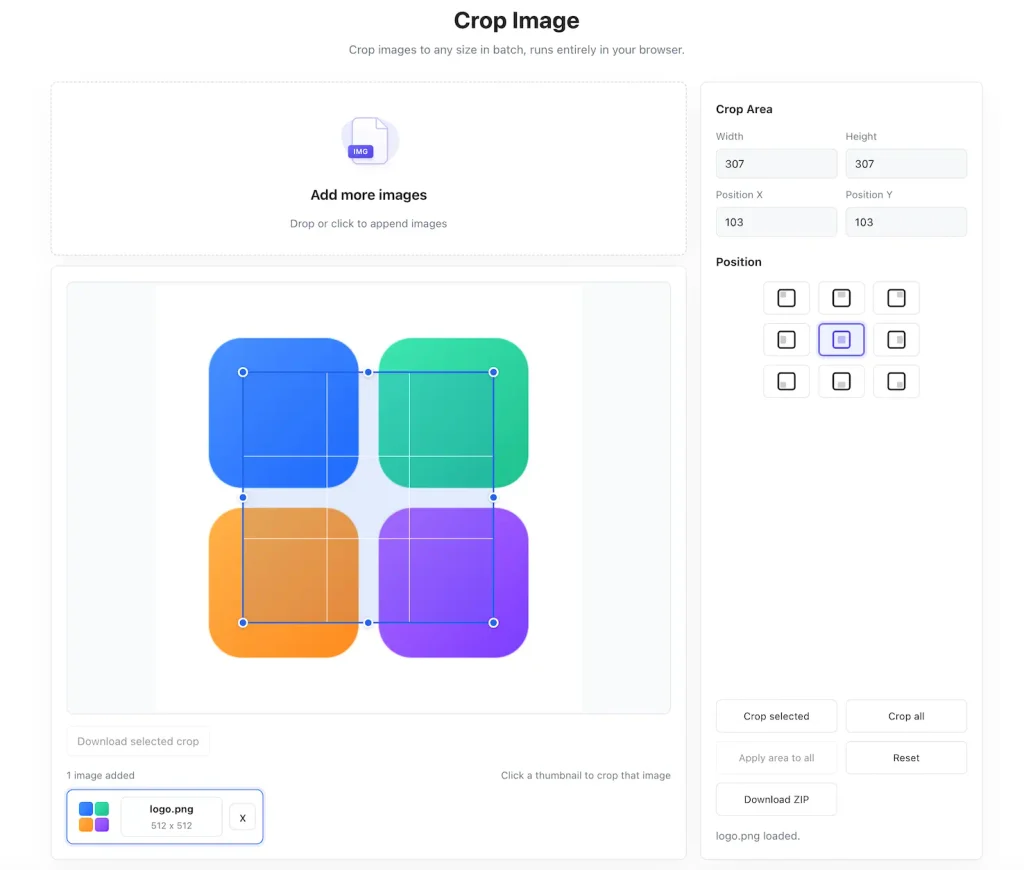
How to Crop Images Online in 3 Simple Steps
You don’t need any design experience to use this tool. The whole process takes just a few clicks, even for multiple files.
- Add your images Drag and drop your JPG, PNG, or WebP files right onto the page, or click to select them from your computer or phone. You can add one image or dozens at a time.
- Adjust your crop area Drag the frame to select the area you want to keep, or type in exact width and height values. Use the position presets for quick alignment. If you’re cropping in bulk, you can apply the same area to all images with one click.
- Download your cropped images Crop selected images or all of them at once. Download files individually, or grab everything in a single ZIP file when you’re done. They’re ready to use right away.
Advantages of a Browser-Based Image Cropper
Compared to desktop photo software or cloud-based editors, a browser-based local cropper has clear advantages.
No software to install You don’t have to download, install, or update anything. It works right in your browser, on any modern computer or phone. No bloatware, no free trials, no unwanted extensions.
Better privacy protection Because images are processed locally on your device, they never travel over the internet or sit on an external server. What’s on your computer stays on your computer.
Works across every device Whether you’re on a Windows laptop, Mac, Chromebook, or mobile phone, as long as you have a modern browser you can crop images. No platform locks, no compatibility issues.
Fast and simple There’s no learning curve, no complicated menus, no endless settings. Add your image, adjust the frame, download. That’s it.
When You’ll Use This Image Cropper
Image cropping comes up more often than you think. These are some of the most common ways our users put this tool to work.
Social media content Crop photos and graphics to fit Instagram, Twitter, LinkedIn, Facebook, and other platform dimensions, so nothing gets cut off automatically.
E-commerce product images Standardize all your product photos to the same size and framing, so your store pages look clean and consistent.
Work screenshots Trim browser tabs, menu bars, and empty space out of screenshots before sharing them in Slack, email, or reports.
Personal photos Crop out distracting backgrounds, strangers, or unwanted edges from vacation photos, family pictures, and profile photos.
Official documents and ID photos Trim photos and scanned documents to the exact dimensions required for applications, forms, and official submissions.
Why Use MyLuckFile’s Image Cropper?
There are hundreds of image crop tools online. Here’s why ours is worth your time:
- 100% browser-based, nothing to install — open the page and start cropping right away
- Local processing, full privacy — your images never leave your device, no uploads ever
- Batch cropping support — crop as many images as you want in one go
- Precise controls — drag-to-select, exact dimensions, position coordinates, and 3×3 presets
- Supports all major formats — works with JPG, PNG, and WebP
- Free to use — no paywalls, no watermarks, no hidden limits
- No account required — no signups, no emails, no personal information asked for
We built this tool the way we wish online tools worked: simple, respectful of your privacy, and actually useful. No gimmicks, no upsells, just a tool that does what it says.
Frequently Asked Questions
Is this image cropper really free?
Yes. You can crop as many images as you want right in your browser, completely free. There are no hidden fees, no watermarks added to your files, and no limits on how many files you can process.
Do my images get uploaded to a server?
No. Every part of the cropping process runs locally on your device, inside your web browser. Your image files are never sent to any remote server, and we never store copies of your images.
Can I crop multiple images at the same time?
Absolutely. You can add as many images as you need, apply the same crop area to all of them, and crop everything in one batch. You can also adjust each image individually if you prefer.
What image formats are supported?
We currently support cropping for JPG (JPEG), PNG, and WebP image files — the most common formats for photos, screenshots, and web graphics.
Does cropping reduce image quality?
No. Cropping only removes the outer parts of the image and keeps the selected area at its original quality. It doesn’t compress or degrade the image content.
Do I need to install software to use this?
No. MyLuckFile works entirely in your web browser. There’s nothing to download, install, or update. It works on every modern desktop and mobile browser.
A simple image crop is one of those small tasks you shouldn’t have to jump through hoops to get done. You shouldn’t need a paid photo editor, and you definitely shouldn’t have to upload your private files to a random server just to trim a screenshot.
If you need to crop images quickly, cleanly, and without giving up your privacy, give our free online image cropper a try. It’s ready to use right now, right in your browser.
Crop Image