If you’ve ever tried to share a single page from a report in a work chat, only to find the PDF won’t preview inline and everyone has to download it first, you know how useful it is to turn PDF pages into plain JPG images. Sometimes you need a full page rendered as a picture, sometimes you just want to pull the original photos and graphics out of a PDF file. Most online converters force you to upload your whole document to a remote server, many slap watermarks on your output, and desktop software feels like overkill for a quick conversion.
MyLuckFile’s PDF to JPG tool handles both full page conversion and embedded image extraction right inside your web browser. Everything runs locally on your device, so your PDF files never get sent to any external server. You can adjust JPG quality, pick from multiple render resolution levels, process multiple PDFs at once, and download your results with no watermarks and no sign up required.
Whether you’re sharing contract pages over messaging apps, pulling product images out of a brochure, creating thumbnails for a website, or saving document pages as image files, you can get it done quickly without handing your files off to a third party service.
When You Need PDF to JPG Conversion
PDF is great for preserving exact formatting across devices, but it’s not always the most practical format for everyday use.
For sharing in chats and on social platforms, JPG images load instantly inline, while PDF files usually require a separate download and open step. For websites and app previews, you need image files, not document files. For inserting into presentations, docs, and forms, images are far more flexible than embedded PDFs. Many submission portals only accept image uploads and won’t take PDF files at all.
Converting PDF pages to JPG makes your content more shareable, more compatible, and easier to use across more platforms.
Two Conversion Modes For Different Jobs
This tool isn’t limited to just rendering whole pages. It includes two separate modes built for two common real world needs.
Full Page Conversion
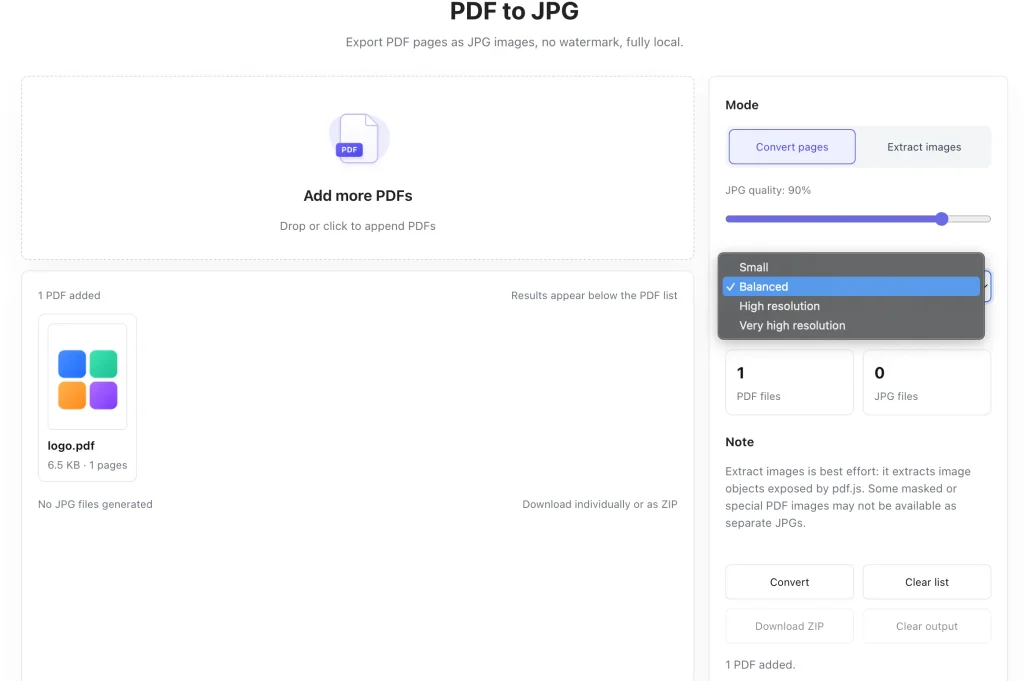
This mode renders every page of your PDF as a complete JPG image. It’s perfect for turning reports, contracts, invoices, and documents into shareable picture files. You can adjust the JPG quality slider to balance file size and sharpness, and choose from four render scale options: Small, Balanced, High resolution, and Very high resolution. Pick lighter settings for quick chat shares, or higher resolution for print and high quality uses.
Embedded Image Extraction
This mode pulls the original image files directly out of the PDF, instead of taking a screenshot of the page. It’s ideal for grabbing product photos from catalogs, illustrations from reports, or graphics from brochures. You get the original image assets, not a re-rendered screenshot. Note that some masked or specially encoded PDF images may not be extractable, which is normal for this kind of tool.
Batch processing is supported for both modes. Drop in multiple PDF files, run the conversion, and download all your output JPGs packaged in a single ZIP file, or save them individually.
Your Files Stay On Your Device, Always
Most online PDF converters upload your entire document to their cloud servers before processing it. For public documents that might not be an issue, but for contracts, financial records, ID documents, internal reports, and personal files, uploading sensitive material to an unknown third party service is a real privacy risk.
MyLuckFile works entirely locally in your browser. All PDF rendering, conversion, and image extraction happens on your own computer, using your device’s own processing power. Your files are never transmitted over the internet, never stored on external servers, and never leave your control.
There’s no account to create, no email to enter, and no hidden data collection.
- No server uploads of any kind
- No cloud storage of your files
- No registration or personal information required
- No third party access to your documents
Privacy isn’t an add-on feature here. It’s how the tool is built from the start.
How to Convert PDF to JPG In Three Steps
You don’t need any technical skills to use this tool. The whole process is straightforward, even for multiple files.
- Add your PDF files Drag and drop your PDFs onto the page, or click to select files from your computer or phone. You can add one file or multiple documents at once.
- Choose your mode and settings Pick either full page conversion or image extraction mode. Adjust JPG quality and render resolution to match what you need the images for.
- Convert and download Click the convert button. Once processing finishes, download images individually or grab everything in one ZIP file.
Advantages Of A Local Browser-Based Converter
Compared to desktop software and traditional cloud converters, running PDF to JPG conversion in your browser has clear practical benefits.
Nothing to install There’s no software to download, install, or update. Open the page in any modern browser and start converting right away. No trial versions, no bundled extra programs.
Better privacy Your files never leave your device. Sensitive documents stay on your own hardware, with zero risk of cloud data leaks or third party access.
Works everywhere It runs on Windows, Mac, Chromebooks, and modern mobile browsers. You’re not tied to one operating system or device.
Flexible options Two different conversion modes, adjustable quality, and multiple resolution levels mean you can tune the output for exactly what you need.
Common Real World Uses
PDF to JPG conversion comes up all the time across work, school, and personal use.
Office and business work Turn contract pages, invoices, and reports into images for quick sharing in chat, so recipients can preview them without downloading files.
Content and ecommerce Extract product images from PDF catalogs and brochures for use on websites, social media, and online stores.
Study and personal use Save textbook pages, lecture notes, and forms as JPG images to view on your phone or tablet without needing a PDF reader.
Web and design work Generate page thumbnails and preview images from PDF documents for websites, portfolios, and project galleries.
Why Use MyLuckFile’s PDF to JPG Tool
There are lots of PDF to JPG converters online. This one stands out because it combines local processing, dual conversion modes, and no nonsense free usage.
- 100% browser based, no software installation
- Full local processing, no server uploads ever
- Two modes: full page conversion and embedded image extraction
- Adjustable quality and multiple resolution levels
- Batch processing support with ZIP download
- Completely free, no watermarks, no hidden limits
- No account required, no personal information asked for
We built this tool to be simple, reliable, and respectful of your privacy. No gimmicks, no upsells, just a tool that does what it says.
Frequently Asked Questions
Is this PDF to JPG converter really free?
Yes. You can convert as many PDF files as you want completely free. There are no hidden fees, no watermarks on your output images, and no limits on how many files you can process.
Do my PDF files get uploaded to a server?
No. Every part of the conversion process runs locally on your device, inside your web browser. Your files are never sent to any remote server, and we never store copies of your documents.
Can I extract images from inside a PDF?
Yes. Use the extract images mode to pull original embedded image files directly out of the PDF. Some specially encoded or masked images may not be extractable, but most standard PDF images work fine.
Can I adjust the output image quality?
Yes. You can adjust the JPG quality slider and choose from multiple render resolution levels to balance file size and image sharpness.
Do I need to install software to use this?
No. This tool works entirely in your web browser. There’s nothing to download, install, or update. It works on every modern desktop and mobile browser.
You shouldn’t need bulky desktop software just to turn a PDF into a JPG, and you definitely shouldn’t have to upload sensitive documents to a random server to do it. If you need a fast, free, and private way to convert PDF pages to images or extract pictures from PDFs, give this tool a try. It works right in your browser, and it’s ready to use right now.
PDF to JPG