
If you’ve ever put together an expense report, scanned a stack of paperwork, or tried to share a set of photos with someone who needs them in a standard format, you’ve probably needed to turn JPG images into a PDF.
A lot of people default to desktop PDF software for this, but that feels like overkill for a quick job. Others use random online converters, but those almost always require uploading your files first. For receipts, ID photos, personal documents, and work paperwork, sending your images to an unknown third-party server is an unnecessary risk.
This JPG to PDF tool was built to be the simple, private alternative. It runs entirely inside your web browser, so your images never leave your device. You can drop in as many JPG, PNG, or WebP files as you want, arrange them in the right order, tweak the page layout, and export one clean PDF file. No installations, no accounts, no uploads — just a straightforward tool that does exactly what you need.
Why Turn JPGs Into a PDF?
JPG is great for photos and graphics, but when you have multiple files to share or submit, a handful of separate images quickly becomes messy.
PDF is the universal standard for documents. It keeps formatting consistent across every phone, computer, and printer. When you bundle images into a single PDF, you get one file that’s easy to share, easy to print, and easy to file away. Recipients don’t need special software to open it, and pages stay in the order you set.
It’s perfect for expense receipts, scanned forms, photo submissions, ID document copies, and any situation where you need to send multiple images as one clean document.
Adjust Page Layout To Fit Your Needs
This isn’t a basic tool that just shoves images onto pages with no control. You get practical layout options so your PDF looks the way you want it to.
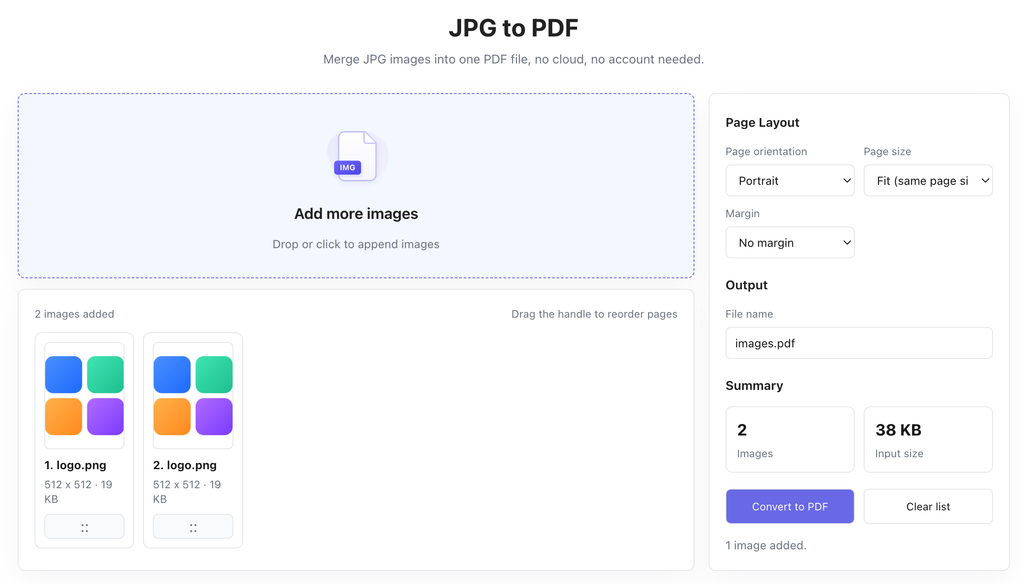
You can switch between portrait and landscape orientation depending on whether your images are tall or wide. For page size, you can let images fit naturally to their original dimensions, or match standard paper sizing for printing. You can also choose margin settings — no margin for full-bleed images, or small margins for a cleaner, more formal document look.
Every image becomes one page in the final PDF, and you can mix different image sizes in the same document without issues.
Arrange Pages In Whatever Order You Need
The order you upload images in rarely ends up being the order you actually want in the finished PDF.
You can drag and drop the image thumbnails to reorder pages however you like. Move receipts into chronological order, arrange scanned pages to match the original document, or put the most important image first. It’s simple, intuitive, and way faster than re-uploading files in the right sequence.
Your Images Never Leave Your Device
This is the part that matters most for anyone working with personal or sensitive images. Unlike almost every other online JPG to PDF converter, this tool does all its work directly in your browser.
Your images are processed on your own computer or phone, using your device’s own processing power. They are never sent to a cloud server, never stored on external hardware, and never seen by any third party. There’s no account to create, no email to enter, and no hidden tracking.
For ID cards, financial receipts, personal photos, and confidential work documents, this isn’t a nice extra. It’s the only way you should be converting files online.
How to Convert JPG to PDF In Three Simple Steps
You don’t need any technical skills to use this tool. The whole process takes just a few clicks, even with multiple images.
- Add your images Drag and drop your JPG, PNG, or WebP files onto the page, or click to select them from your device. You can add a couple of images or a whole batch at once.
- Arrange and adjust layout Drag thumbnails to put pages in the order you want. Pick your preferred page orientation, size, and margin settings. Enter a custom file name for your finished PDF if you’d like.
- Convert and download Click the convert button. Once processing finishes, download your new PDF file ready to use, share, or print.
Common Real-World Use Cases
JPG to PDF conversion comes up more often than you might think. These are some of the most common ways our users put this tool to work.
Expense and receipt tracking Bundle receipts, invoices, and expense photos into one PDF file for accounting, reimbursements, or tax records.
Scanned documents and forms Turn scanned paper forms, applications, and paperwork into clean PDF documents that are easy to share and file.
ID and document submissions Combine ID photos, passport scans, and supporting documents into a single PDF for job applications, visa forms, and official submissions.
Photo collections Turn sets of photos, artwork, or design work into a single PDF for sharing with clients, teams, or friends.
Frequently Asked Questions
Is this JPG to PDF converter really free?
Yes. You can convert as many images to PDF as you want, completely free. There are no hidden fees, no watermarks added to your PDF, and no limits on how many files you can process.
Do my images get uploaded to a server?
No. Every part of the conversion process runs locally on your device, inside your web browser. Your images are never sent to any remote server, and we never store copies of your files.
What image formats are supported?
You can use JPG, PNG, and WebP images. All common image formats work with the tool, and they all get converted into a single standard PDF file.
Can I change the order of the pages?
Absolutely. Just drag the image thumbnails around to reorder pages into whatever sequence you want before converting.
Do I need to install software to use this?
No. This tool works entirely in your web browser. There’s nothing to download, install, or update. It works on every modern desktop and mobile browser.
You shouldn’t need heavy desktop software just to turn a few images into a PDF, and you definitely shouldn’t have to upload your personal documents to a random server to do it.
If you need a fast, free, and private way to combine JPG images into a clean PDF file, give this tool a try. It works right in your browser, and it’s ready to use right now.
JPG to PDF