
Crop Image
Crop images to any size in batch, runs entirely in your browser.

How to Batch Crop Images Online
Get your images perfectly sized in just a few quick steps:
1. Upload Your Images: Drag and drop or click to select your files. You can add one or multiple images at once.
2. Set Your Crop Dimensions: Enter your desired Width and Height in pixels under the Crop Area. You can also specify the exact Position X and Position Y coordinates.
3. Choose Your Anchor: Use the 3×3 Position grid to instantly align your crop area to the center, corners, or sides of the image.
4. Apply and Crop: Click Apply area to all to copy the settings to every image, then click Crop all (or Crop selected for a single image).
5. Download: Save your cropped image individually or click Download ZIP to get them all in a single package.
Key Features of Our Online Image Cropper

Runs Entirely in Your Browser
Your privacy matters. Since the tool operates 100% on the client-side, your images are never uploaded to any server. Your data remains safely on your computer.

Massive Bulk Cropping
Stop editing photos one by one. Set your dimensions once, apply them to all uploaded thumbnails, and crop dozens of images simultaneously to save hours of manual labor.
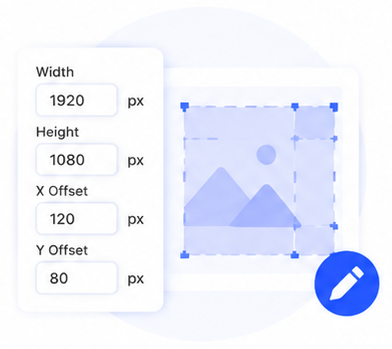
Pixel-Perfect Precision
Take full control of your image composition. Manually adjust width, height, and offsets down to the exact pixel, or reset with a single click if you need a fresh start.

Smart 9-Grid Alignment
Easily center your subject or align your crop box to any edge using our intuitive 9-box position matrix. It eliminates the guesswork and manual math.
Crop Image Online FAQs
Are my photos secure when using this tool?
Completely. Our image cropper uses advanced browser-side technology. This means all file processing happens locally on your machine—your photos never touch an external server, making it 100% confidential and secure.
Can I crop multiple images to the exact same dimension at once?
Yes! That is the core feature of our tool. Once you enter your target dimensions, simply click the Apply area to all button, followed by Crop all to bulk-process your entire queue instantly.
What does the 3×3 “Position” grid do?
It is a quick-alignment shortcut. Instead of manually guessing the coordinate offsets, clicking a box on the grid instantly anchors your crop box to that location (e.g., top-left corner, perfect center, bottom-right side).
Can I preview and download just a single image from the batch?
Absolutely. You can click on any individual image thumbnail to adjust its specific crop box, then use the Crop selected and Download selected crop buttons to grab that specific file without affecting the rest of the batch.