
If you’ve ever gotten a 50-page PDF report and only needed to send three pages to a teammate, or wanted to split a scanned contract into separate files for filing, you know how common PDF splitting is — and how much of a hassle it can be. Desktop PDF editors feel bloated for a quick split, and most online tools force you to upload your entire document to a remote server first, even when it contains sensitive contracts, financial records, or personal paperwork. We built this tool to be the simple, private solution.
MyLuckFile’s PDF splitter lets you separate PDF pages right in your web browser, with no uploads to remote servers and no software to install. You can split by page count to break a document into equal parts, or define exact page ranges to extract only the pages you need. Everything runs locally on your device, so your original PDF never leaves your computer. It’s fast, precise, and built with document privacy at its core.
Whether you’re pulling specific pages out of a business report, splitting a large PDF into smaller files for email, separating scanned documents, or organizing personal paperwork, you can get it done in seconds without handing your files off to a third-party service.
Why Split PDF Files in the First Place?
PDF is great for keeping formatting consistent, but once a document is merged together, pulling out individual pages isn’t always straightforward. Splitting a PDF into smaller, separate files makes document management much easier in all kinds of everyday situations.
For work, you often don’t need to send an entire 40-page proposal — just the pricing section, or just the terms and conditions. Splitting lets you extract only the relevant pages and share just what the recipient needs, without forwarding the whole file and all its internal details.
For personal use, scanned documents often save as one long PDF even when they contain multiple separate forms, receipts, or certificates. Splitting them into individual files makes them much easier to organize, name, and back up properly.
For sharing and email, many platforms have file size limits. A large PDF can be too big to attach, but splitting it into smaller parts lets you send them over email or messaging apps without running into size restrictions.
Splitting isn’t about breaking documents apart for no reason. It’s about keeping your files organized, sharing only what’s necessary, and making PDFs work the way you need them to.
Two Ways to Split PDFs Exactly How You Want
We built this tool to handle both common split scenarios, so you don’t have to use multiple tools for different jobs. You can choose the method that fits what you’re working on.
Split By Page Count
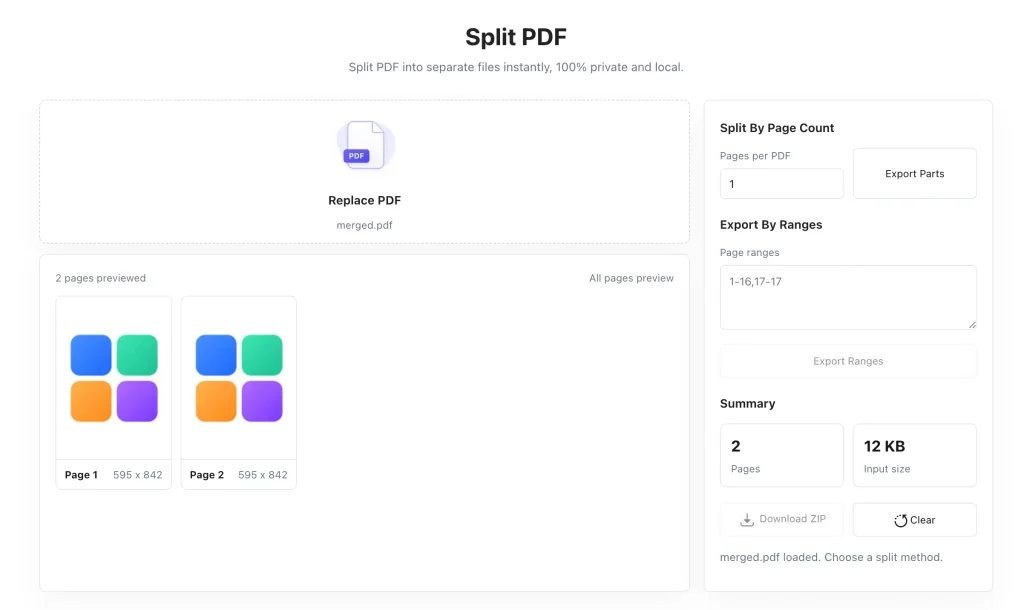
This mode breaks your PDF into evenly sized parts. Just enter how many pages you want per file, and the tool will split the whole document accordingly. For example, enter 1 to turn every single page into its own separate PDF file, or enter 5 to split a 20-page document into four 5-page files.
This is perfect for when you want to break a large document into smaller chunks, or save every page as an individual file for separate use.
Export By Page Ranges
This mode lets you extract exactly the pages you want. Just type in the page ranges you need, like 1-10,12,15-17, and the tool will pull only those pages and export them as a separate file. You can extract a single page, a continuous range, or multiple separate sections all at once.
This is ideal for when you only need certain pages out of a longer document — like pulling one chapter out of a report, or selecting specific pages from a contract to share.
No matter which method you use, the original formatting, images, and text stay exactly as they were. Splitting only separates the pages — it never alters or degrades the content.
Your PDFs Stay on Your Device — No Cloud Uploads
Here’s the problem with most online PDF splitters: they upload your full document to their server before they do anything with it. For casual public files that might not matter, but for business contracts, financial statements, personal ID documents, legal paperwork, or internal company materials, sending files to an unknown third-party server is a real concern.
MyLuckFile works differently. All the processing happens directly inside your web browser, using your device’s own processing power. Your PDF is read, split, and generated right on your computer. It is never sent to a cloud server, never stored on external hardware, and never leaves your control at any point.
There’s no account to sign up for, no email required, and no hidden data collection. There’s:
- No cloud upload of any kind
- No server storage of your documents
- No account registration or personal info needed
- No third-party access to your files
For anyone who works with sensitive documents, or just doesn’t like handing their files over to random online services, this isn’t an extra feature. It’s how online tools should work.
How to Split PDF Files Online in 3 Simple Steps
You don’t need any technical skills to use this tool. The whole process takes just a few clicks, even for longer documents.
- Add your PDF file Drag and drop your PDF right onto the page, or click to select it from your computer or phone. You’ll see a preview of the pages to confirm you have the right file.
- Choose your split method Pick either split by page count or export by page ranges. Enter your preferred number of pages per file, or type in the exact page ranges you want to extract.
- Download the split files Click the export button, and the tool will split your PDF locally on your device. Once it’s done, download all the resulting files packaged in a single ZIP, ready to use right away.
Advantages of a Local Browser-Based PDF Splitter
Compared to desktop software and traditional cloud tools, a browser-based local splitter has clear real-world advantages.
No software installation required You don’t have to download, install, or update anything. It works right in your browser, on any modern computer or phone. No bloatware, no free trials, no unwanted extensions.
Stronger privacy protection Because files are processed locally on your device, sensitive documents never travel over the internet or sit on someone else’s server. What’s on your computer stays on your computer.
Works across every device Whether you’re on a Windows laptop, Mac, Chromebook, or even a phone, as long as you have a modern browser you can split PDFs. No platform locks, no compatibility issues.
Fast and straightforward There’s no learning curve, no complicated menus, no endless settings. Upload, choose your split method, download. That’s it.
When You’ll Want to Split a PDF
PDF splitting comes up more often than you might think. These are some of the most common ways our users put this tool to work.
Business and office work Extract specific pages from reports, proposals, and contracts to share only what’s relevant with clients or teammates. Split large documents into smaller sections for easier review.
School and research Pull individual chapters or sections out of textbooks, papers, and research documents. Split lecture notes and study materials into smaller, more manageable files.
Personal paperwork Split scanned bundles of receipts, certificates, forms, and medical records into individual files for proper filing and organization.
File sharing and email Break large PDFs into smaller parts that fit under email and messaging app file size limits, so you can send them without running into attachment errors.
Why Use MyLuckFile’s PDF Splitter?
There are plenty of PDF splitting tools online. Here’s why ours is worth using:
- 100% browser-based, nothing to install — open the page and start splitting right away
- Local processing, full privacy — your files never leave your device, no uploads ever
- Two split modes — split by page count or extract exact page ranges
- Original quality preserved — splitting doesn’t alter text, images, or formatting
- Free to use — no paywalls, no watermarks, no hidden limits
- No account required — no signups, no emails, no personal information asked for
We built this tool the way we wish online tools worked: simple, respectful of your privacy, and actually useful. No gimmicks, no upsells, just a tool that does what it says.
Frequently Asked Questions
Is this PDF splitter really free?
Yes. You can split as many PDF files as you want right in your browser, completely free. There are no hidden fees, no watermarks added to your files, and no limits on how many documents you can process.
Do my PDF files get uploaded to a server?
No. Every part of the splitting process runs locally on your device, inside your web browser. Your files are never sent to any remote server, and we never store copies of your documents.
Can I extract specific page ranges?
Absolutely. You can use the export by ranges mode to extract exact pages. Enter single pages, continuous ranges, or multiple separate sections, and the tool will pull only those pages into a new file.
Does splitting PDFs reduce the quality of my documents?
No. The splitting process only separates the pages into different files — it doesn’t compress, alter, or degrade the original content. Your text, images, and formatting stay exactly as they were.
Do I need to install software to use this?
No. MyLuckFile works entirely in your web browser. There’s nothing to download, install, or update. It works on every modern desktop and mobile browser.
You shouldn’t need a bulky paid editor just to pull a few pages out of a PDF, and you definitely shouldn’t have to upload sensitive documents to a random server to do it. Splitting PDFs should be simple, fast, and private.
If you need to split PDF files quickly, securely, and without the hassle of uploads, software installs, or accounts, give our free online PDF splitter a try. It’s ready to use right now, right in your browser.